-
In the folder area, locate the item you want to edit.
-
From the folder area, click  beside the item to display the Item Manager.
-
Click the Access tab.
-
In the Item Level Security section, select Define Item
Level Access Privileges.
Note: If you select herit Parent Folder Access Privileges,
this item will have the same access privileges as those set for the
parent folder. See Granting access privileges
to your folder.
-
Click Apply to refresh your page.
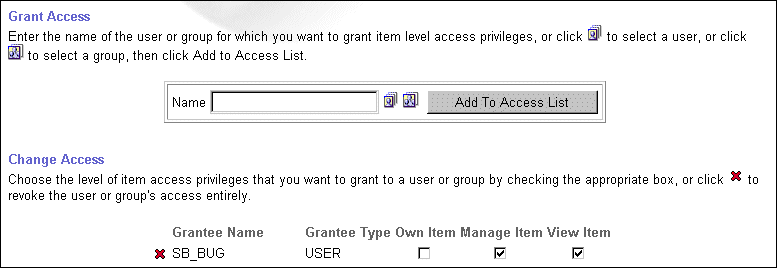
The Access tab now has two new sections: Grant Access
and Change Access.
-
In the Grant Access section, enter the name of the user or group to
which you want to assign folder level privileges. If you do not know
the name of the user or group, click  to display a list of existing users or click
  to display a list of existing groups from which to choose.
A box is displayed that lets you perform a search for the user or
group name. You can use the wildcard character, %, to display a list
of users or groups with your search criteria.
Notes:
-
Adding a group instead of a user saves you time if you want to grant
the same folder access privileges to mulitple users. If you don't see
the group name in the access list, you can create
a group.
-
If item level security is enabled, an item creator can grant the Own
Item privilege to more than one user. However, content area
administrators, folder owners, and authorized users with the Manage
Items privilege (folder managers) have the highest level privilege on
all items in the folder. They cannot have their privilege superseded
by an item level privilege.
-
Click Add To Access List.
-
Click Appy to see the user or group reflected in the Change
Access section.
-
Beside each user name, choose which item level privileges you want to
grant to each user or group by checking the appropriate check box(es):
|
Item Privilege |
Description |
|
Own Item |
User is the owner of this item. The user has full privileges to this
item and can perform any task on it including adding, editing,
moving, and deleting it. |
|
Manage Item |
User can edit or delete this item.
Note: Granting this privilege to the content contributor who
created this item is a good idea since the contributor can update the
content regularly without having to wait for the administrator or
folder owner to do this. |
|
View Item |
User can view this item only.
Note: The item is only accessible to those users or groups to
which item access privileges were granted. Thus, you would most
likely grant a group the View Item privilege to allow a wider
audience to view this item. |
-
Repeat steps 7-9 for each user or group you want to add to the item
access list.
-
When you are done, click OK to save these settings and return to the
folder content area. |

 next to the Grantee Name.