|
Note: If you are already in the folder in which you want to
add a sub-item, skip to step 4.
-
In the Navigator, click the Content Areas
tab to navigate to Path: Content Areas.
-
In the Name column, click the content area link
that
contains the item you want to work with.
-
The content area home page (root folder) is displayed with all the sub-folder
links that were chosen.
-
If necessary, click a sub-folder link to view the contents of a given folder.
-
If you do not see the folder that you want to work with, this means
that you have not been granted the appropriate folder access
privileges. See your content area administrator
to gain access.
-
Click  Edit
folder located on the main banner to switch to Edit mode. Edit
folder located on the main banner to switch to Edit mode.
-
Locate the item for which you want a sub-item and click  .
The Item Wizard is displayed. .
The Item Wizard is displayed.
-
From the Item Type list, choose the appropriate item
type for the item that you want to add to your folder. Oracle
Portal supports the following base item types: URL,
File, Text, Image,
Folder Link, Application
Component, PL/SQL, Java
Application, and Zip.
Note: The fields that are displayed in the remaining wizard
pages may vary depending on the selected item type.
-
Click Next.
-
In the Display Name field, enter the item's link text. This is
what users will click to view the item.
-
Enter a description for this item.
-
In the Publish Date field, enter the exact date on which this
item is displayed to public users.
Note: If you are the item or folder owner or were granted the Manage
Items privilege, this item is immediately accessible in Edit mode.
-
In the Expiration Period field, choose whether you want this
item to be always available, available only for a specified number of
days (calculated from the publish date), or if it expires on a
specific date (DD-MON-YYYY).
-
Click Next.
-
Perspectives describe the audience or interest area for the item. In
the Perspectives field, click the appropriate move arrow     to move a perspective from the Available
Perspectives to the Displayed Perspectives list. Use the
appropriate up and down arrows
to move a perspective from the Available
Perspectives to the Displayed Perspectives list. Use the
appropriate up and down arrows     to determine the order that the perspectives are displayed next to
the item.
to determine the order that the perspectives are displayed next to
the item.
|
Notes:
-
Unlike categories, you can choose more than one perspective for an
item. For example, a sales report might belong to both the Sales
Representative and Marketing Manager perspectives.
-
You can select multiple perspectives by holding the Ctrl key
while clicking each perspective you want.
-
Hover over the arrows for hint text. |
-
Enter or browse to the location of the image file that you want to
associate with this item and then select how the image is aligned in
the folder area.
-
Enter a keyword used to locate this item in a basic
search and enter a name for the author.
Note: By default, the Author field is filled with the
name of the initial logged on user.
-
Select the appropriate check boxes to enable
document control or hide the item in View mode.
-
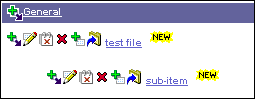
Click Finish to save your changes and return to the folder area.
Your newly-added sub-item should appear similar to the following:
 |
