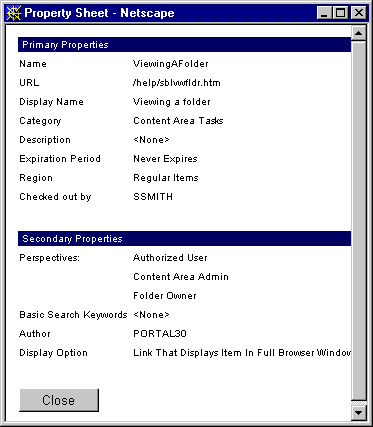
The item property sheet is a quick way to view your item attributes without accessing the Item Manager.

You must be logged on with the appropriate folder or item level privileges to display an item property sheet.
|
The item property sheet is a quick way to view your item attributes without accessing the Item Manager. |
|
|
|
You must be logged on with the appropriate folder or item level privileges to display an item property sheet. |
|
To display an item property sheet: |
|
Note: If you are already in the folder that you want to work with, skip to step 4.
|
|
Note |
|
 Edit
folder located on the main banner to switch to Edit mode.
Edit
folder located on the main banner to switch to Edit mode. .
A separate window with the item's primary and secondary item
attributes is displayed.
.
A separate window with the item's primary and secondary item
attributes is displayed.