|
Note: If you are already in
the folder in which you want to work with, click  Folder
Style on the folder dashboard and
continue from step 4. Folder
Style on the folder dashboard and
continue from step 4.
-
In the Navigator, click the Content Areas tab.
-
Navigate to Path: Content Areas > Name
of Content Area > Styles.
-
In the Actions column, click Edit next to the style you
want to work with to display the Style Manager.
-
Click the  Folder Layout tab.
-
In the Folder Layout section, choose which folder layout
diagram best reflects how you want to arrange items and a sub-folders
in the folder regions.
|
Layout |
Folder Region Layout Description And Diagram |
|
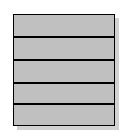 |
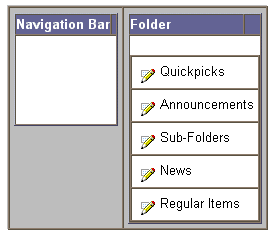
Layout regions in five rows. By default, all new folders (including
the content area's default style) are assigned this folder layout.
 |
|
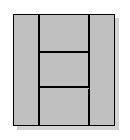 |
Layout regions in three columns, with the middle column divided into
three rows.
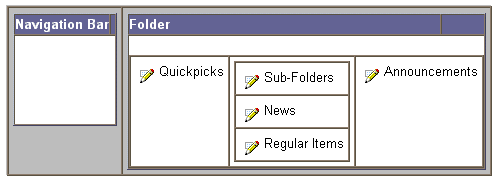 |
|
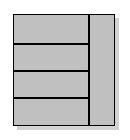 |
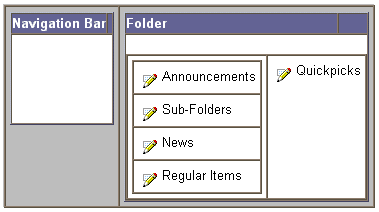
Layout regions in two columns, with the first column divided into
four rows.
 |
|
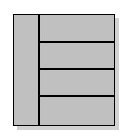 |
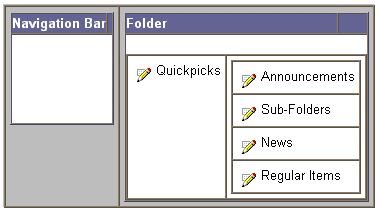
Layout regions in two columns, with the first column divided into
four rows.
 |
|
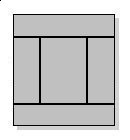 |
Layout regions in three rows, with the middle row divided into three columns.
 |
-
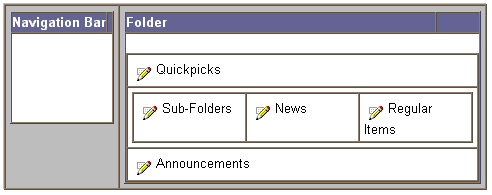
Click Apply to refresh your page and continue to work. The
region layout diagram is automatically updated to show the placement
of the navigation bar and folder regions according to the folder
layout you chose. The region layout diagram reflects how the folder
regions appear on the rendered page.
-
Click  beside any region in the region layout diagram to edit its
properties, including the default region names (i.e. Quickpicks,
News, Regular items, etc.).
beside any region in the region layout diagram to edit its
properties, including the default region names (i.e. Quickpicks,
News, Regular items, etc.).
The Style Manager (Edit Region): Item or
sub-folder tab automatically appears.
-
Edit any of the Folder Region Properties or Region Content Properties.
-
Click Apply.
The folder region layout is modified with your changes. |
