|
Note: If you are already in the folder in which you want to
edit an item, skip to step 4.
-
In the Navigator, click the Content Areas
tab to navigate to Path: Content Areas.
-
In the Name column, click the content area link
that
contains the item you want to work with.
-
The content area home page (root folder) is displayed with all the sub-folder
links that were chosen.
-
If necessary, click a sub-folder link to view the contents of a given folder.
-
If you do not see the folder that you want to work with, this means
that you have not been granted the appropriate folder access
privileges. See your content area administrator
to gain access.
-
Click  Edit
folder located on the main banner to switch to Edit mode. Edit
folder located on the main banner to switch to Edit mode.
This displays the item management tools next to all the items in the folder.

-
In the folder area, locate the item you want to edit.
-
Click  beside the item to display the Item Manager.
-
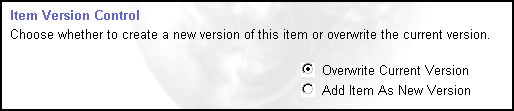
On the Primary tab, below the Item Version Control
section, choose the item version control option you want to apply to
this item. If the item version control was set to Simple at
the folder level, both item version control options are available as
shown below:
-
If you overwrite the current version, a copy of the previous version
is not saved.
-
If you add the item as a new version, a copy of the previous version
is saved.
-
If the item version control was set to Audit at the folder
level, the Add Item As New Version is the only available option.
-
If you make changes to the item attributes on the Secondary
tab, you must choose the item version control option on this page as well.
-
Click OK. |
