You must be the portal administrator or have the proper authority to change the folder style applied to the portlet repository.
|
|
You must be the portal administrator or have the proper authority to change the folder style applied to the portlet repository. |
|
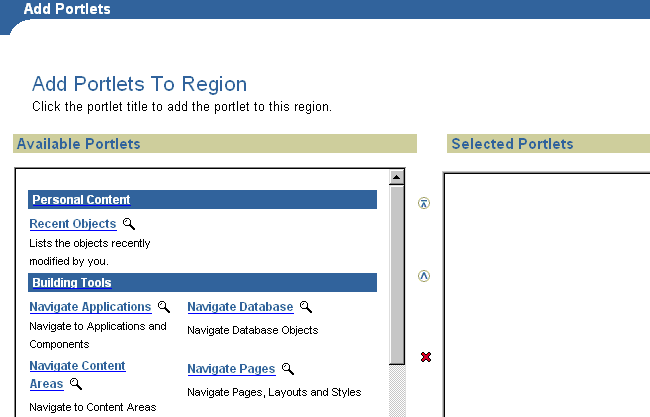
When you add a portlet to a page, you do so from the Add Portlet screen, which looks like this:
The left list shows all the portlets you can add; that is, all the portlets currently reflected in the portlet repository that you are authorized to see. Because the portlet repository is simply another content area, you can easily change the appearance of the list by changing the folder style of the portlet repository's root folder. See Changing a folder's style for more information. If you don't see the providers you expect to see in the repository, or if certain portlets are not appearing in the appropriate provider's subfolder, you may not have the necessary privileges. Because each portlet provider is represented by a subfolder, your portal administrator can easily control which users may see a folder in the portlet repository. In addition, the portal administrator can also apply security at the portlet level by editing the portlet in the portlet repository. See your portal administrator if you don't have access to the providers or portlets you need. |
|
What is the portlet repository? |
|