Changing the width of the navigation bar's search field

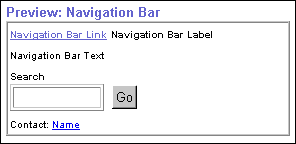
You can insert a search field on the navigation bar which lets end users perform a search on a given keyword(s).
You must be logged on as the style administrator or creator of the style to perform this task.

Be careful when changing the style applied to the folder since any changes affect the appearance of all other folders and navigation bars using that style.

To change the width of the navigation bar's search field:

Note: If you are already in the folder in which you want to work with, click Folder Style on the folder dashboard and continue from step 4.

  1. In the Navigator, click the Content Areas tab.

  2. Navigate to Path: Content Areas > Name of Content Area > Styles.

  3. In the Actions column, click Edit next to the style you want to work with to display the Style Manager.

  4. Click the Properties tab.

  5. In the Style Element list, choose Navigation Bar Search Field.

  6. In the text field, enter the width of the navigation bar search field (in pixels). The default is 10.

  7. Click Apply.

Related Topics

Changing an item's keywords

Changing the navigation bar width