Creating database schemas

A schema is a collection of components and database objects under the control of a given database user. Each Oracle Portal application maps to an Oracle database schema. The schema stores the components owned by the application. In addition, the schema can store the database objects on which the components are based.

You can map an application to schemas currently in the Oracle database where Oracle Portal is installed. When you create the schema, you must select the Application Schema check box to designate that applications can be built in the schema.

When you create a Oracle Portal 3.0 user, you also map the user to a database schema. By default, this schema is <portal>_public, where portal is the schema where Oracle Portal is installed. However, you can map the user to another schema if you have selected the Use this Schema for Portal Users check box when creating the schema.

Oracle Portal offers two methods for creating schemas. You can use the

You can also edit any existing schemas to change the password, edit tablespace options, or designate that the schema is for building applications. 

You must be have the CREATE ALL SCHEMAS global privilege to create a schema. By default, members of the DBA group have this privilege.


To create a new database schema using the Schemas portlet

  1. Click in the navigation shortcut bar to navigate to the Oracle Portal home page. On the Oracle Portal home page, click the Administer Database tab.
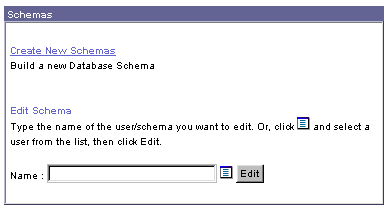
  2. In the Schemas portlet, click Create New Schemas.

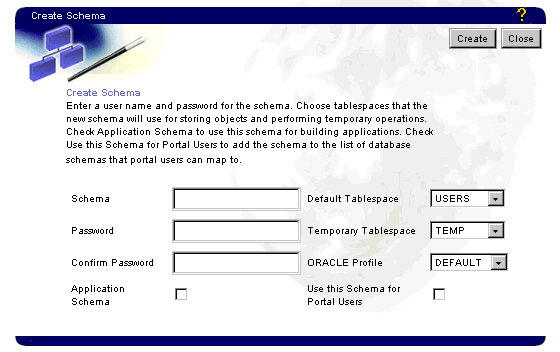
  3. The Create Schema page displays.

  4. In the Schema field, enter a name for the new schema.

  5. In the Password field, enter a password for logging into the schema.

  6. In the Confirm Password field, enter the password again.

  7. Choose a Default Tablespace. The default tablespace will be used to store any database objects or components created in the schema.

  8. Choose a Temporary Tablespace. The temporary tablespace will be used for creation of temporary storage for operations such as sorting table rows.

  9. Choose an Oracle Profile. A profile limits the amount of system and database resources that are available to the schema.

  10. Select Application Schema check box to enable developers with appropriate application access privileges to create components in the schema.

  11. Select the Use this Schema for Oracle Portal Users check box to add the schema to the list of database schemas that Oracle Portal portal users can map to.

    Every portal user must be associated with a database schema. By default, the name of this schema is <portal>_public, where portal is the name or the schema in which Oracle Portal is installed. If you select the Use this Schema for Portal Users check box, a Portal user can be mapped instead to the schema you are currently creating.

  12. Click Create. If you have the MANAGE ANY SCHEMA global privilege, the Create a New Schema page updates with a link at the top of page that you can click to edit any of the options you selected for the schema.

  13. (optional) To edit the options you selected for the schema, click Edit at the top of the page.

To create a new database schema in the database objects navigator:

  1. Click on the navigation shortcut bar.

  2. Click the Database Objects tab in the Portal Navigator.

  3. Click Path: Database Schemas.

    Note If you are already on the tab page displaying database schemas, you don't need to click this link.

  4. Click Create, then Schema.

  5. Follow steps 3-12 above.


Notes

  • This documentation also refers to schemas as Oracle database user accounts. A schema or database user account is different from a Oracle Portal user. You use Oracle database commands or the Schemas portlet to create and edit these user accounts. You can also assign privileges specific to the Oracle database, such as INSERT, UPDATE and DELETE on tables.

  • You create Oracle Portal users in the Users portlet and can assign to them Oracle Portal-specific schema-level privileges, such as Modify all objects of a given type.

Related topics