-
In the Navigator, click the Content
Areas tab.
-
Navigate to the following path:
Path: Content Area > ContentAreaDisplayName
> Custom Types > Attributes
where ContentAreaDisplayName
is the content area in which the attribute was created.
Note: If the attribute is
shared, it will be in the Shared Objects content area.
-
In the row for the attribute you want to edit, click Edit.
-
In the Name field, edit the
name of the attribute. The name is used internally only.
Note: The name must be
unique within the content area, is limited to 60 characters, and can
contain only alphanumeric characters (A-Z, a-z, 0-9) and the
underscore character (_); no spaces or other special characters.
-
In the Display Name field, edit the descriptive name for the
attribute. The display name is used in the Navigator and is also
displayed as a label for the attribute when users add or edit an item
or folder of a type that includes the attribute.
Note: The display name is
limited to 60 characters, and can contain any character, including spaces.
-
(Text attributes only) In the Length field, enter the number
of characters the attribute can store.
-
Select Enable Translations if you want to users to be able to
translate the values stored in the attribute into different languages.
Note: If you clear this
check box, the values stored in the attribute will be the same in all languages.
-
(Text attributes only) In the Display Option radio group,
select how to display the attribute when users add or edit an item or
folder of a type that includes the attribute.
|
Display Option |
Description |
|
Single-line Field |
Displays the attribute as a field that contains a single line of
text, for example:
 |
|
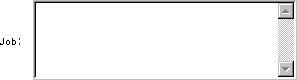
Multi-line Field |
Displays the attribute as a field that can contain multiple lines of
text, for example:
 |
|
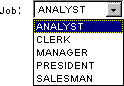
List Of Values |
Displays the attribute as a list from which users can choose a value,
for example:
If you select this radio button, enter the name of the List
of Values (LOV) in the field provided. Click  to select an LOV if you are not sure of its name.
Note: The LOV must already
exist. For information about creating LOVs, see Building
a List of Values. |
-
(Date, Number, and URL attributes only) In the List Of Values
field, enter the name of an LOV from which users can choose a value
for the attribute. Click
to select an LOV if you are not sure of its name.
Note: The LOV must already exist.
-
(PL/SQL attributes only) In the PL/SQL
Execute Options radio group, select which privileges to use
when executing the PL/SQL stored in a PL/SQL attribute.
|
PL/SQL Execute Options |
Description |
|
Public |
Executes PL/SQL with the privileges of the Oracle
Portal public schema. |
|
Creator |
Executes PL/SQL with the privileges of the schema associated with the
user who created the item or folder that includes the PL/SQL attribute. |
|
Schema |
Executes PL/SQL with the privileges of a specified schema. If you
select this radio button, enter the name of the schema in the field
provided. Click
to select a schema if you are not sure of its name. |
-
Click OK. |
